Showing posts with label VIRUS REMOVAL. Show all posts

Tuesday, July 17, 2012

How to Disable Autorun Functionality in Windows Using Registry Editor?


Whenever you insert a USB drive, CD/DVD, etc into your system, Windows automatically launches an Autorun dialog box which allows you to select an action from the given list. You can browse the content, play media files, etc using Autorun dialog box.
Sometimes you might find the Autorun functionality annoying and might want to disable it permanently. Today in this tutorial, we are going to share a small registry method to disable Autorun functionality in Windows.

This method works in almost all Windows versions including XP, Vista and 7.
1. Type regedit in RUN or Startmenu searchbox and press Enter. It'll open Registry Editor.
2. Go to following key:
HKEY_CURRENT_USER\Software\Microsoft\Windows\CurrentVersion\Policies\Explorer
If the above key doesn't exist, create it.
3. In right-side pane, create a new DWORD value NoDriveTypeAutoRun and set its value to any of following according to your requirements:
FF - To disable AutoRun on all drives
20 - To disable AutoRun on CD-ROM drives
4 - To disable AutoRun on removable drives
8 - To disable AutoRun on fixed drives
10 - To disable AutoRun on network drives
40 - To disable AutoRun on RAM disks
1 - To disable AutoRun on unknown drives
Disable_Autorun_Functionality.png
4. If you want to disable Autorun on a combination of drives, you'll need to calculate sum of the values. For example, if you want to disable Autorun on CD-ROM drives and removable drives, you'll need to set the value to 20+4=24.
5. If you want to restore the Autorun functionality, simply delete theNoDriveTypeAutoRun DWORD value created in Step 3 Or you can set the default value which is given below:
Windows 2000: 95
Windows XP: 91
Windows Server 2003: 95
Windows Vista, Server 2008 and 7: 91
6. If you want to disable Autorun functionality for all users in your system, use the "HKEY_LOCAL_MACHINE" instead of "HKEY_CURRENT_USER" mentioned in Step 2.

Saturday, July 14, 2012

REMOVE DRIVEMONITOR.EXE, FLASHGUARD.EXE OR DRIVEGUARD.EXE VIRUS


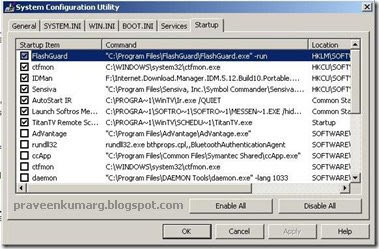
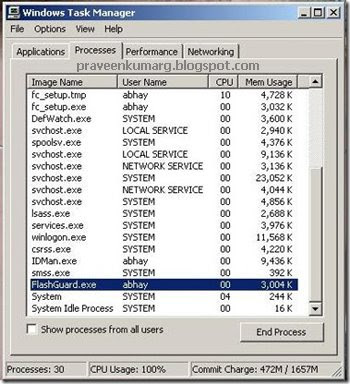
FlashGuard.exe or DriveMonitor.exe or DriveGuard.exe worm runs a process named with any of the .exe names.FlashGuard.exe also add itself to system startup, you can see through msconfig command.It also creates startup key in registry to run itself every time on system boot.

Remove FlashGuard.exe Worm

1. Inorder to remove FlashGuard.exe from your computer you need to first end its process running in task manager, right click the process and select end process
2. Search for the files tmp.exe, delete DriveGuard.tmp.exe or gHmpg.tmp.exe and locate and delete these files.
3. Go to Start Menu –> Run, type msconfig and press Enter key.
5.Open Start Menu–> Run, type regedit and press Enter key

Navigate to the Following path

HKEY_LOCAL_MACHINE\Software\Microsoft\Windows\CurrentVersion\Run\FlashGuard

Now, you need to open your virus infected pen drive and delete the following files

pen drive letter\System\Security\DriveGuard.exe *
pen drive letter\autorun.inf

I hope the solution provided above will help you fix the problem.


Wednesday, June 27, 2012

REMOVE VIRUS WHICH DO NOT SHOW HIDEN FOLDERS


How To Remove the virus Which Makes do not show hidden folder Hey Friends !!!!!! 
i have Got a New Trick For Computer
Some of us Found a Virus problem in Which, In the XP u could not change the setting from "Do Not Show Hidden Folders" to "Show Hidden Folders"
When u change to "Do Not Show Hidden Folders" to "Show Hidden Folders" is Again turns into "Do Not Show"
So Friend! Here is the Solution.....
Follow the steps Baby!!!!
1. Go To... Start>run
2. Enter "regedit"
3. In The Registry editor Follow The Steps
hkey_local_machine>software>microsoft windows>currentversion>explorer>advanced>folder>hidden>showall
4. Now go to right side registry list checkedvalue double click 4 edit
5. change value data 1 close registry editor 

Hey Dost!!!!!!
Now Ur Problem is Solved.....
enjoy friends

Sunday, June 24, 2012

Remove virus from Pendrive

If you are using pendrive for data transfer at school, college or at your office or any where
you must have come across the VIRUS creates an exe file in your usb drive with the name New Folder.exe.

WITH THIS VIRUS

Task manager is disabled.
Registry Editor is disabled.
Folder options not working.
Taking too much time for accessing pendrive.
Uses half of your computers processing power.

now you can easily remove this virus
Just download the tool from the link below.
Run this downloaded exe by double clicking on it.
Then click on “Delete Autorun.inf file”.


After that click on ” Remove virus from USB”. The virus will be removed from your pendrive.
with this tool you cal also restore your task manager, registry editor and other things which were disabled by virus
just click on “Restore Default Windows Settings”. thats it.............


click here to download